Last week’s PHP exploit scare left the world scrambling to update their systems. Nothing much happened afterwards, but I preferred to err on the cautious side and decided to shutdown my servers and only start them again once the PHP parts were fully patched. This worked great for all of my servers except for one: A Nextcloud AIO (all in one) installation. I tried a lot but I couldn’t find a way to stop all containers, update them, and only then start them again. While it’s easy to stop the production containers, I couldn’t find a way to update the installation without AIO’s master container running. This is bad, as the master container has an administration web frontend that probably uses PHP, too. Hence, no way I would connect this VM to the Internet while patching. But finally, I found something that helped.
Fortunately, I had a separate Nextcloud AIO installation for testing purposes on a VM behind a firewall that can’t be accessed from the Internet, so I could create a VM snapshot, try out different things without the system being exposed and revert to the snapshot after every ‘failure’.
After 2 hours of playing ‘container games’, I gave up and went to ‘plan B’: Use a NAT in front of the VM. In practice it turned out that the process is actually quite straight forward for my KVM / QEMU / virsh stack on my bare metal server that hosts the Nextcloud AIO VM:
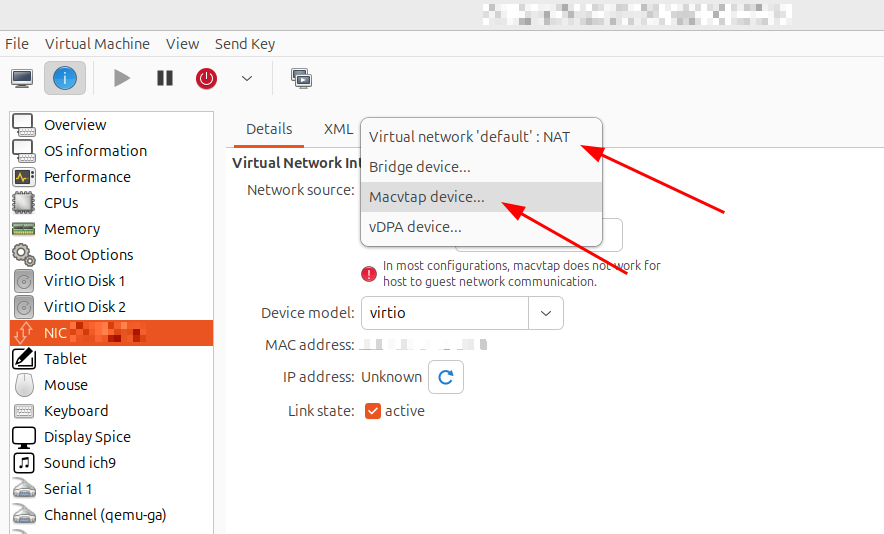
- Reconfigure the Internet facing VM that hosts the production Nextcloud AIO installation to use NAT instead of a public IP address. Then start the VM.
- Due to the change, the VM can’t be reached from the Internet. Hence, access the VM via a virtual serial console (virsh console) from the bare metal host to change the IP configuration of the virtual network adapter to use an IP address of the NAT range. This restores IP connectivity while blocking incoming requests.
- Configure port forwarding through the NAT for the SSH port of the VM.
- Use port forwarding over an SSH tunnel to access the master container’s web interface from my notebook through the NAT and run the update.
- Once done, change the IP configuration of the VM again and the network configuration of the VM for direct Internet access instead of NAT.
- Remove the NAT ssh port forwarding rule again on the bare metal host.
I was shying away from plan B because it looks complicated, but in the end, the whole process took 15 minutes and hence much less time than all the failed approaches to find a way to securely update the instance with all containers stopped.
So next time, and I’m sure there is going to be a next time, that’s the plan for raising a NAT in front of my otherwise Internet facing Nextcloud AIO installation to update it.