In the previous post, I’ve had a look at how to create a new Ubuntu 26.04 installation with an encrypted system partition and a separate partition for the user directory that is also encrypted. A cool way to get this done is to bring up an installation in a virtual machine first and then move a copy of it to a physical computer. While this is my installation and configuration method of choice going forward, I have now also found out now how to do this directly on a physical device.
Just to recap: The Ubuntu installer doesn’t have an option to create separate system and home partitions that are both encrypted. By default, it wants to have everything in a single encrypted partition. This doesn’t work for me because I want to back-up and restore the system independently of my data. That being said, here’s how to get there:
In a first step, use the Ubuntu installation DVD image to boot the physical machine and then select ‘Try Ubuntu‘ instead of ‘Install Ubuntu‘. Once you are on the desktop, start the ‘Disk’ utility to initialize the machine’s disk and then create 4 partitions. The first 3 partitions can be created with out a file system, and the combined size of them should be the total size that should later be used during the installation for the efi, boot and the initially combined system/home partitions. The size of each of those partitions doesn’t mater as you will see in a second.
The 4th partition takes the remaining size of the disk and is the future encrypted user partition. You can also leave the partition empty at this point, or already create a LUKS encrypted ext4 filesystem on it.
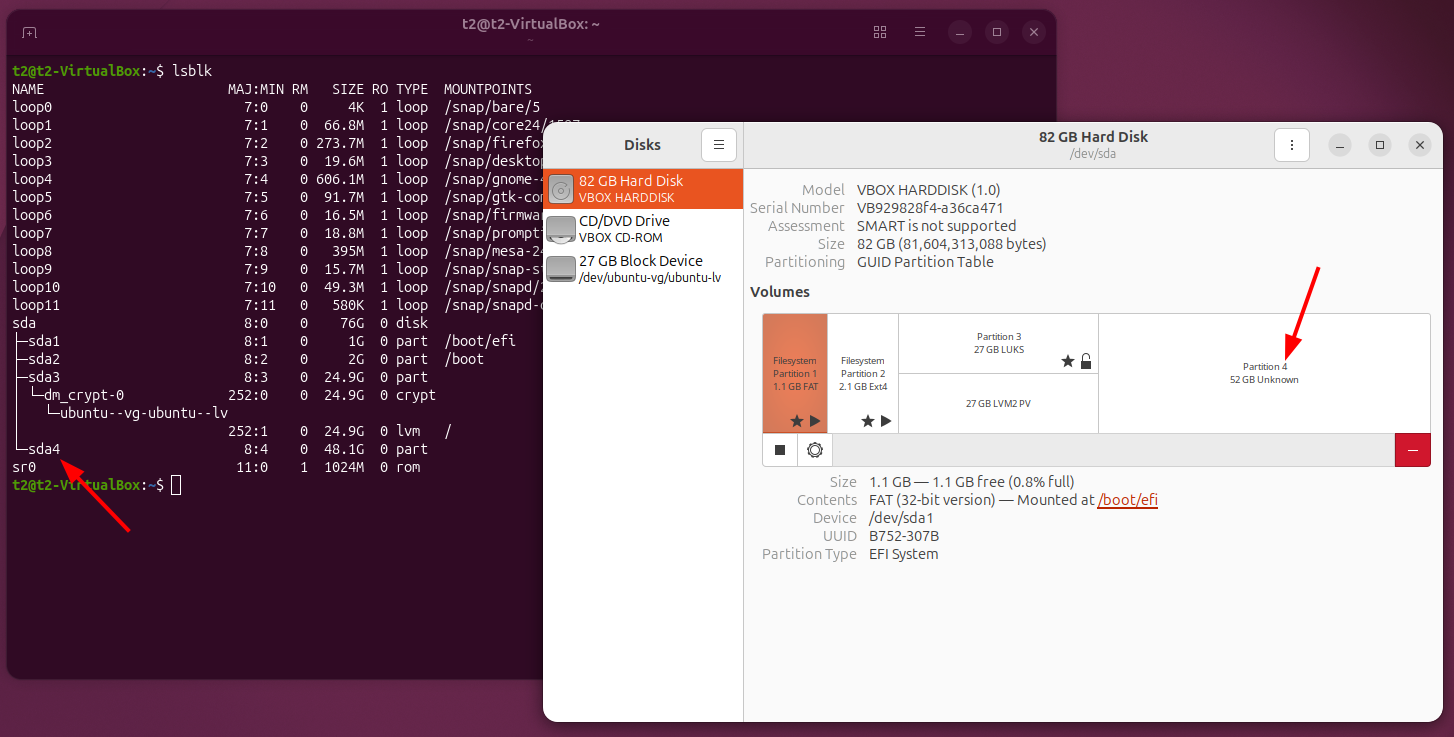
Once done, you will have 4 partitions: sda1, sda2, sda3 and sda4. On NVMe drives, they are called nvme0 to 4. At this point, delete partition 1,2 and 3 again. This leaves sda4/nvme4 as the only partition on the drive at the end of the disk and empty space at the beginning of the disk.
You might wonder why to first create 3 partitions and then delete them again!? The first reason is that Ubuntu will later create 3 partitions that should be sda1-3 or nvme1-3 for consistency reasons. Creating and then deleting 3 of the 4 partitions ensures that the fourth partition will remain sda4/nvme4. The Ubuntu installer will then create partitions with numbers 1 to 3 as it would do during a ‘normal’ install. This will make it much easier to backup and restore individual partitions with Clonezilla later-on and have a sane partition numbering.
Once that is done, start the Ubuntu 26.04 installer, go thorough the installer configuration steps and select “Install Ubuntu alongside other operating systems on the drive“. This will leave sda4/nvme4 untouched and the installer will create 3 new partitions from 1-3 into which Ubuntu 26.04 is then installed.
After the installer is done, the system partition which at this point still includes the user directory is on sda3/nvme3. In a final step, the user directory can then be moved to the encrypted sda4/nvme4 as described in the previous post.
And that’s it, with this slight detour you have an encrypted system partition with Ubuntu 26.04 and a separate partition for the home directory that is also encrypted!