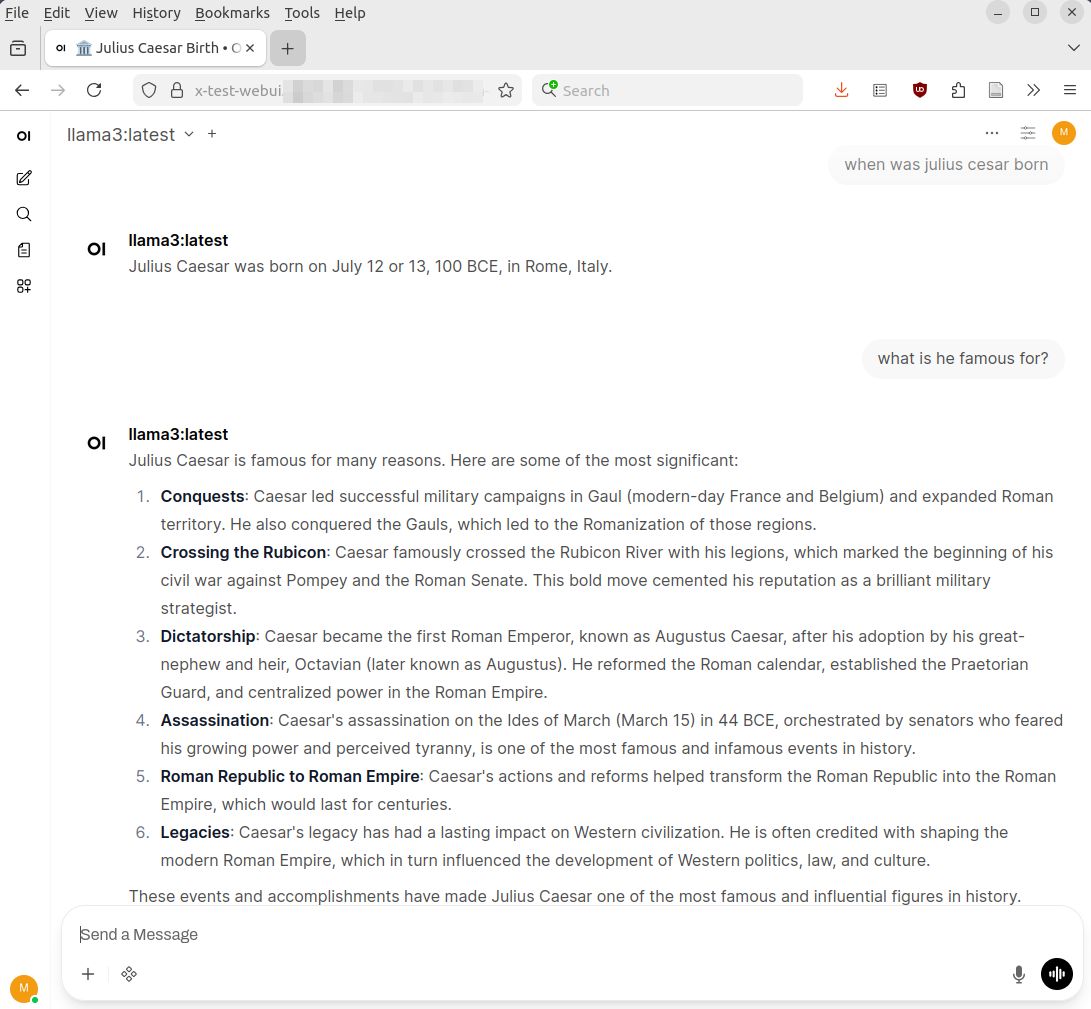
In part 4 of this series, I’ve installed Ollama on my server at home so I could download large language models (LLMs) and interact with them on the command line. Questions and answers on the shell are nice, but the next step was obviously to get a nice web based user interface. And again, I started to look for options and pretty quickly came to the conclusion that Open WebUI is probably the thing to go for. I’ll call it OWUI in this post. Their page on Github indicates that it is a huge and broadly supported project. After that, however, things become a bit opaque. There is no Wikipedia page on the project and there are only somewhat indirect references that refer to Open WebUI Inc. as the company behind it. But that is pretty much it. I’m not sure what I should make of this, but decided to go ahead and have a closer look anyway.
Open WebUI and Docker Compose
Probably the best way to get OWUI up and running is to spin it up with Docker Compose together with a dockerized Ollama installation. I didn’t do this, however, as I already had a non-dockerized Ollama installation on the server (see my previous posts), and decided to re-use this part. For OWUI, however, I decided to use docker compose, and here’s my docker-compose.yml file for my setup that I had AI write for me (yes, I’m that far down the rabbit hole…):
services:
  open-webui:
    image: ghcr.io/open-webui/open-webui:main
    container_name: open-webui
    restart: unless-stopped

    # Web UI port on host : container
    ports:
      - "3000:8080"

    # Bind mount all persistent data into a subfolder of this project
    volumes:
      - ./data:/app/backend/data

    environment:
      # Tell Open WebUI to use the Ollama server running on the host
      - OLLAMA_BASE_URL=http://host.docker.internal:11434


    # Make "host.docker.internal" resolve to the host on Linux
    extra_hosts:
      - "host.docker.internal:host-gateway"
In this setup, the backend data is stored outside of the container in the ‘data’ folder where the docker-compose.yml file is located. This way, I should be able to transfer the installation to another server and I can also easily keep track of how much disk space OWUI requires. However: I didn’t try to move the installation to another machine yet, so I can’t vouch that the backend data folder is the only thing that is required to move outside of the container.
Ollama Access
The only quirk: By default, Ollama only runs on localhost, which can’t be reached by OWUI inside the container. The fix: Change the Ollama installation to open up its tcp port to the world and then restrict access to the IP address of OWUI running inside the container. Here’s how that works:
# Change the Ollama config to allow access from everywhere,
# not only localhost. This example works on Ubuntu 24.04:
#
sudo mkdir -p /etc/systemd/system/ollama.service.d
cat <<'EOF' | sudo tee /etc/systemd/system/ollama.service.d/override.conf
[Service]
Environment="OLLAMA_HOST=0.0.0.0:11434"
EOF
sudo systemctl daemon-reload
sudo systemctl restart ollama

# Get the IP address OWUI accesses Ollama from.
# One way to do this: Use tcpdump to catch traffic:
# sudo tcpdump -i any -w traffic2.pcap
# In my case the IP address of OWUI in a docker container was
# 172.18.0.2

# Configure ufw (uncomplicated firewall to allow access
# to Ollama from that IP + ssh access from everywhere :)
#
sudo ufw allow from 172.18.0.2 to any port 11434
sudo ufw allow ssh
sudo ufw enable

# Now log into OWUI from your web browser
Let’s Run
As per configuration in the docker-compose.yml above, OWUI is available on tcp port 3000 of the machine it is running on. After creating a username and password, my Open WebUI interface was up and running and the screenshot above shows how my ‘Cesar’ question from the previous post looks like on the web interface.
More Than Just a Nice User Interface
The output looks nice, but OWUI is much more than just a web interface for Ollama. Beyond Ollama access, it has powerful features, for example, to combine local Ollama LLMs with web search and local documents, and it can also connect to ‘big tech’ LLMs for things where data can ‘leak out’. There’s a lot to say about these features, so stay tuned for the next follow up posts on these topics.