All right, after having had a look at the printing costs of my new HP Smart Tank 7307 ink printer / scanner combination in the previous post, here’s a follow up on how easy it is to get printing and scanning working with a Linux notebook in 2026. And to make things a bit more difficult: I’m a bit behind the times as I still use Ubuntu 22.04 LTS from back in 2022, so it’s unlikely to have the latest software and drivers. So I worried a bit that getting a printer to work that was most likely released after this date would be a bit of a hassle.
The Printer – Easy!
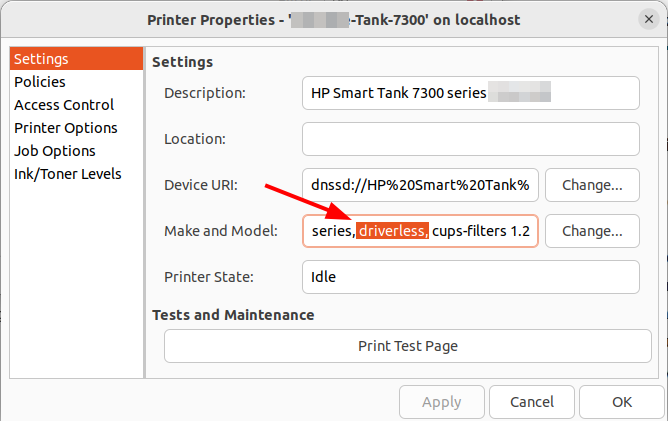
To my positive surprise, getting the printer to work was super easy. No printer driver installation is required, Ubuntu 22.04 detects and configures a printer driver automatically as soon as it detects the device in the network. Zero configuration effort required. The reason why it was so simple: As I have recently learned, pretty much all printers released in the last decade support the Internet Printing Protocol (IPP), so no printer specific drivers or settings are necessary. I’m delighted! More on IPP and how it works in a follow up post!
The Scanner – Easy as Well!
Often, the trickier part of getting a printer/scanner combination working is the scanner unit. As HP is known for good support of the Linux SANE scanner protocol, I chose a printer from them rather than from another vendor I do not have a lot of experience with. Before I bought the printer/scanner, I checked out the HP web page which version I would require of hplip (HP Linux Image and Printing), which is the plugin required by SANE for HP scanners. And even though Ubuntu 22.04 is 4 years old at the time I wrote this blog post, the HP 7300 series was already included in the hplip library version that was shipped with Ubuntu 22.04 (3.21.12). So it looks like HP has not touched that interface over the years. And indeed, the scanner also worked out of the box with XSane and also gscan2pdf without any driver installation or configuration. Yes, out of the box! No software installation and no configuration required. Just like that!
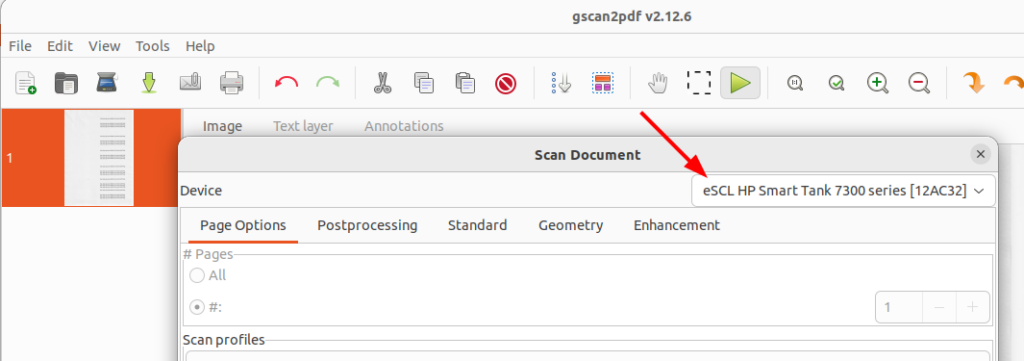
In both programs, however, I selected the (Mobile Printing Alliance) eSCL entry for the device, which is an interoperable standard and, as far as I understand, has nothing to do with hplip. Be that as it may, it works out of the box and I’m glad I discovered the scanning capabilities of gscan2pdf in the process, as I was only using XSane so far, which is a bit rudimentary.