For another post to be published soon, I had set-up a Nextcloud instance to play around with Collabora Online. Before tearing down the setup again, I decided to re-use it for another experiment: How does attaching and using ‘external’ storage to Nextcloud work!?
External Storage and Options
‘External’ storage seems to be a bit of a special thing. By default, Nextcloud has a path to a (local) data directory for all users. In my Nextcloud instances, this is local SSD storage. While such storage is fast the amount of storage is limited and not cheap. With ‘External’ storage, Nextcloud offers an option to use network attached storage in addition to the ‘normal’ storage for some or all users. There are a number of different options to attach network storage, like S3 objects, Webdav, SFTP and SMB.
SMB Could be Interesting
I was particularly interested in the SMB option, because SMB allows to read and write parts of files, instead of transferring the full file. This could be particularly useful e.g. for video files and streaming directly from Nextcloud, as the server can trickle load parts of the files as required for viewing. More about that later.
External Storage Pricing
So where to get external storage? For my test, I used a Hetzner ‘Storage Box’ connected to my Nextcloud test instance running on a virtual machine, also in a Hetzner data center. Storage box pricing is quite competitive: While one pays almost €6 per TB of S3 storage at Hetzner, not including the data traffic, or a hefty €52.36 per month for 1 TB of block storage, a 1 TB storage box that supports SFTP and also SMB comes at €3.81. So I tried the cheapest option in combination with the SMB network storage protocol for the reasons described above. My main questions: Does it work reliably, and how fast can files be accessed and transferred? When I tested S3 object storage over the network some time ago, I was quite underwhelmed by the performance, so I did not expect much.
Configuration Details
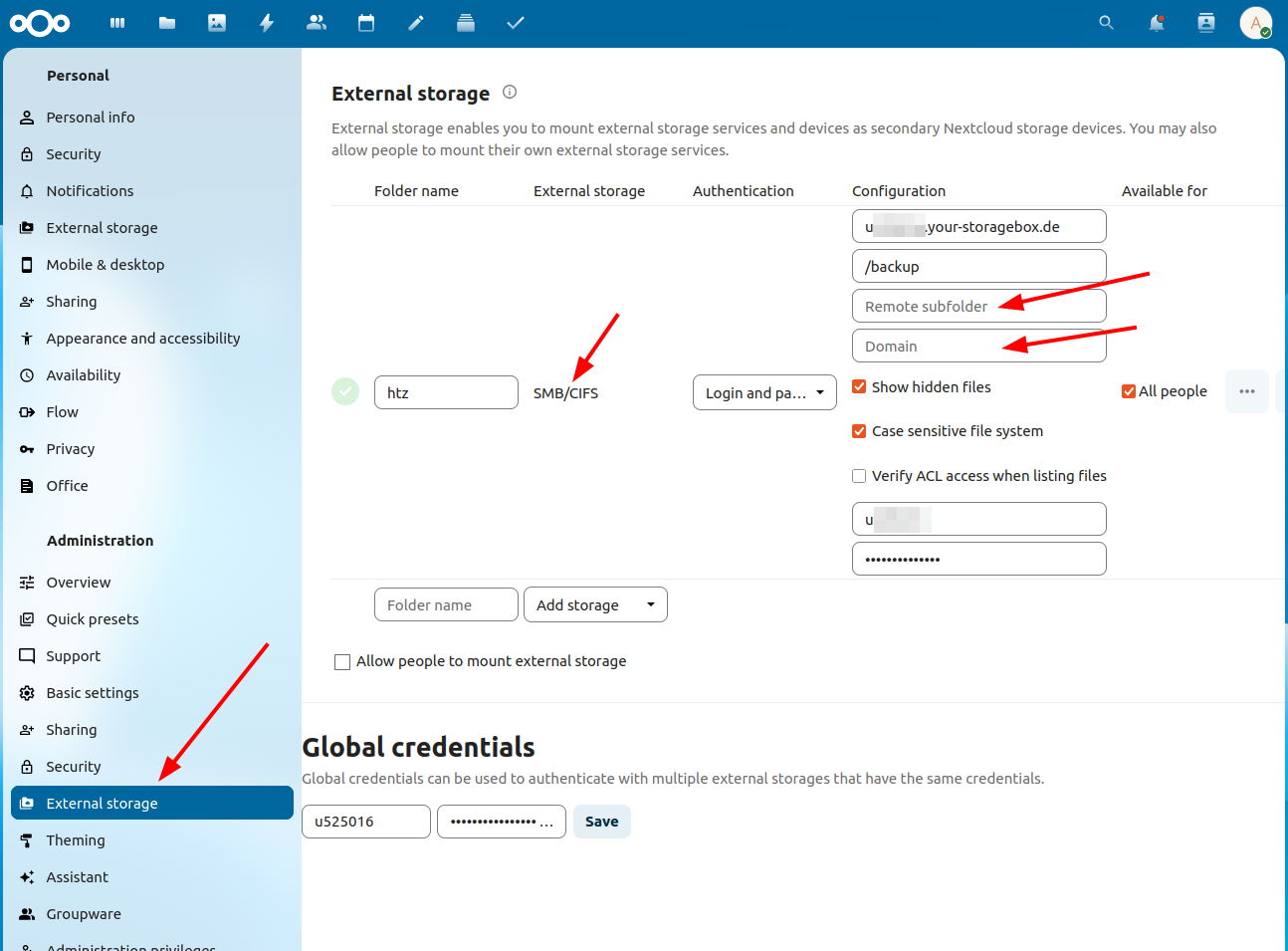
Coming back to Nextcloud and ‘external’ storage, let’s have a look how to configure it and the differences to Nextcloud’s ‘normal’ storage. The image above shows where and how external storage is connected in the administration section for all or particular users. Once configured, ‘external’ storage shows up as a sub-directory in each user’s main directory. In the configuration above, ‘external’ storage is behind the directory name ‘htz’.
Do Quotas Apply?
While the local ‘normal’ storage is used by all users, and per user quotas can limit the amount of storage for a user, this is not the case for ‘external’ storage. Here, there are no quotas, and external storage can be assigned to one, several or all users of the system. The quota of the user only applies for the ‘normal’ storage, the ‘external’ storage is shared and the quota does not apply. Also important: All users that have access to this external storage can see all files, so there is no user separation. By default, configuring external storage requires admin privileges, but it’s possible to allow any user to mount their own external storage.
Encryption
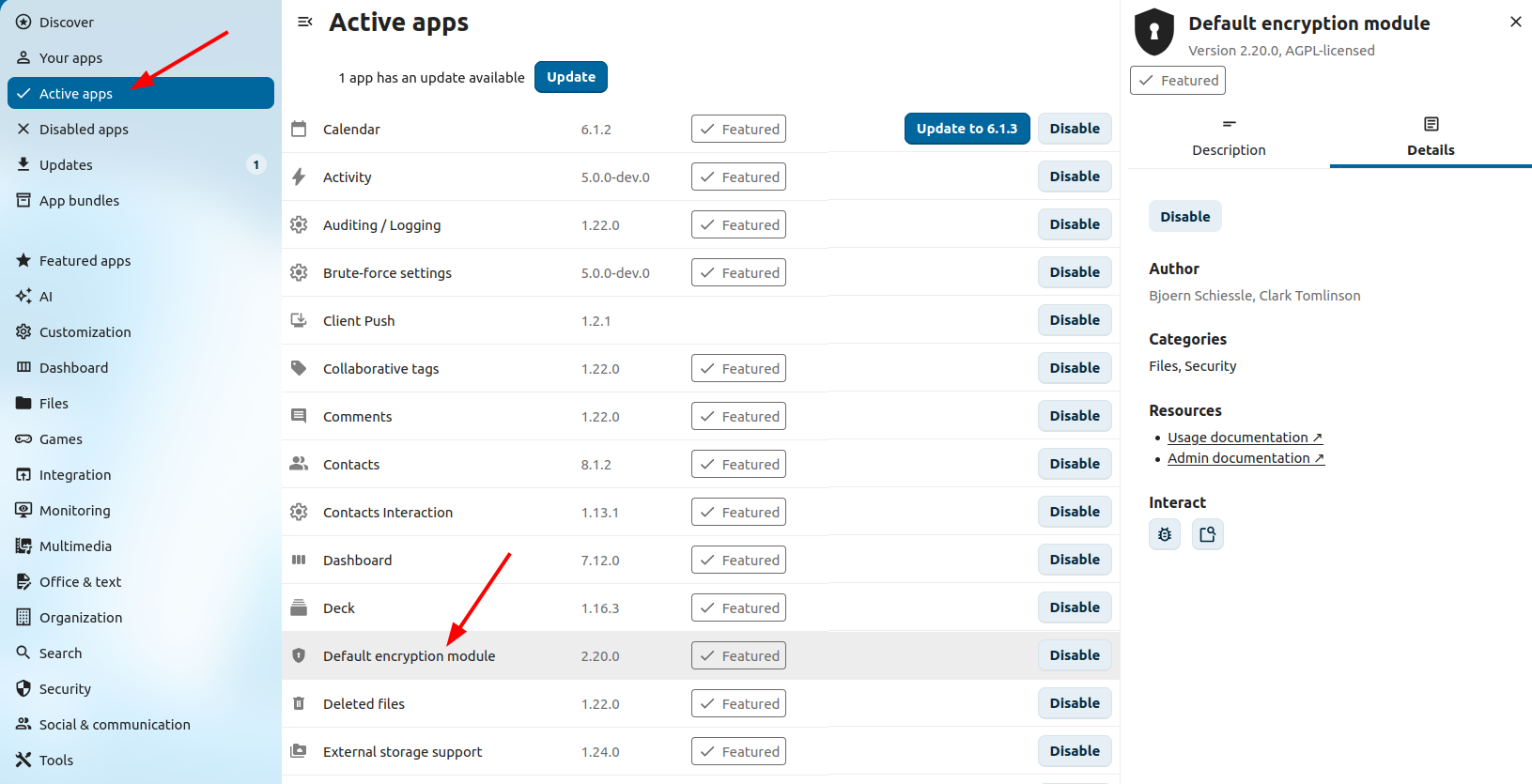
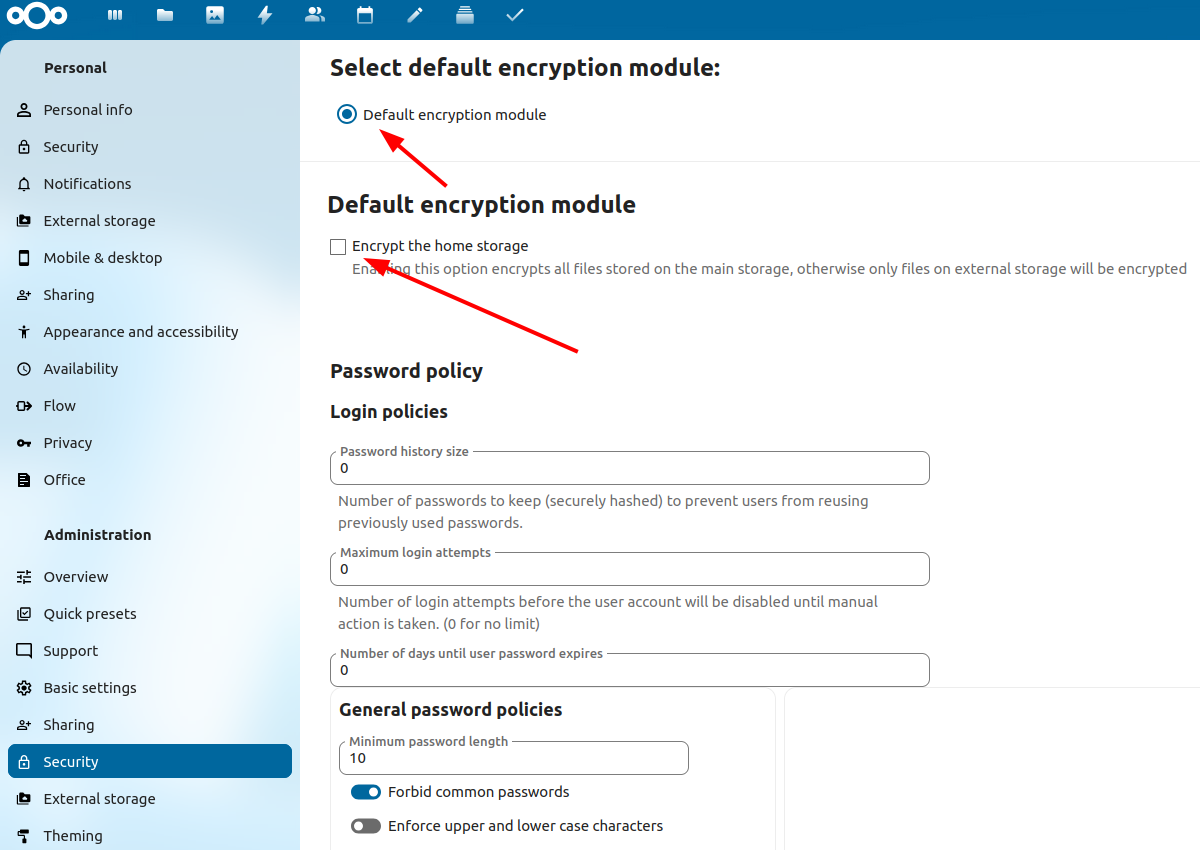
Files pushed to external storage are not encrypted by default! That’s of course not ideal if you are not in control of the external storage. Therefore, Nextcloud offers a ‘Default Encryption Module‘ that can be activated separately form external storage in the Apps section. See the screenshot below for details. By default, the default encryption module then encrypts all files in both the normal and external storage, which is not really what I wanted. However, it’s possible to disable encryption for normal storage. This is what I did in my test setup, as the home storage is encrypted as part of the disk setup. When a file is modified or created, the module encrypts the files. Already existing files are not encrypted after activating the module unless they are modified! Also important to realize: The module only encrypts the file content, the filename and directory structure is still written in clear text to external storage. A difficult limitation for me, as unencrypted metadata is definitely an issue for me.
Performance
So, how performant is external storage? From my home network DSL line I can get the ‘full’ 100 Mbps line speed in the uplink direction and the full line speed of 40 Mbps in the uplink direction. So far so good. Next I tried over a 1 Gbps fiber link from Paris. The link is much faster but the distance, i.e. round trip time is larger. The result: 400 Mbps in the downlink direction.
The speed in the uplink direction seems to be limited by the encryption speed on the Nextcloud server: When uploading a large file, it is first transmitted to the Nextcloud VM. Once the upload is complete I could see the file being written to external storage over the network at around 40 Mbps. This might be no issue for small files, but when using external storage for large multi GB video files, it takes quite a bit after the upload has finished until the file is available.
Streaming Large Videos from External Storage
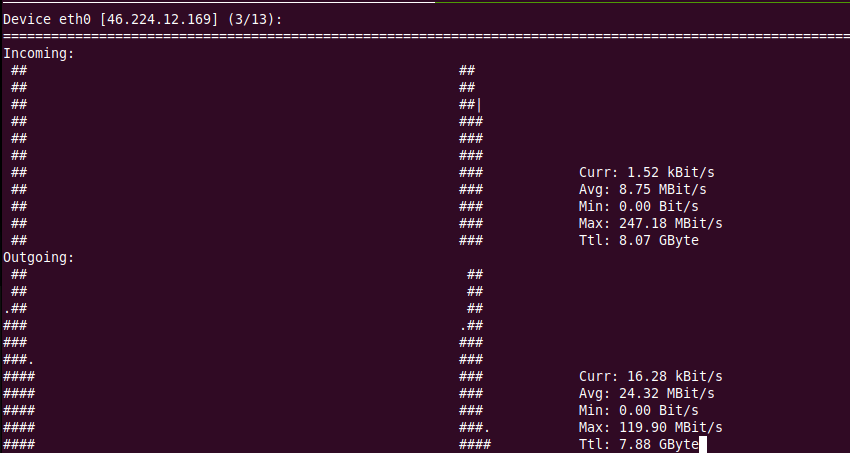
And finally, I had a look at how Nextcloud accesses external storage when streaming a video from the web browser from within Nextcloud. The good news: Like from local storage, Nextcloud only requests chunks of the files and then transmits them and then waits until the video player in the browser requires more data. The screenshot above shows how this looks like in practice.
Summary
So overall, I am quite impressed by how external storage works and I can see quite a number of uses for it. The limitations for me: File- and directory names are not encrypted and encryption speed when uploading files is quite limiting for larger files. But apart from those two things, Nextcloud external storage over SMB works better than I thought!
you could have mounted the Hetzner Storage Box or subdirs in it into your existing Nextcloud file structure, e.g. using sshfs. This way it would become a real part of your storage pool. Even full encryption would be possible if you set up an encrypted virtual container on it and mount this one.
From experience that shouldn’t even decrease the performance as the limiting factor seems to be the network.