Cloud Services operated from home such as Owncloud for calendar and address book synchronization, filesharing, simultaneous work on documents, etc. are a great way to keep control over one's own private data. To say I'm a fan of Owncloud is an understatement. To me, having an Owncloud server at home has been an incredible enabler as I never wanted my private data to be stored, analyzed and exploited by Internet based companies.
While Owncloud is easy to use, it's unfortunately far from straight forward to install and maintain for the average person. A typical Owncloud installation at home requires the knowledge how to install Owncloud on a server, how to activate port forwarding in the DSL or cable router, how to register and configure a dynamic domain name and how to register and install an SSL certificate. Furthermore, it is not uncommon anymore that Internet service providers do not issue public IPv4 addresses to their customers anymore which requires additional measures to gain access to the Owncloud server at home from the Internet. As a consequence, people without technical background are excluded from its use.
To enable a broad audience to use an Owncloud server at home to regain control over their private data, the installation and maintenance of Owncloud must become much simpler. Over the past year I've thought a lot about this and have put together and tested the building blocks that are required to make installation and maintenance so straight forward that an average smartphone and PC user can finally have his own cloud server at home. Be warned, this is going to be a long blog post as I want to lay out my thoughts in detail.
Non-technical people don't build a server and put it into their home, they need to be able to buy it off-the-shelf. In other words, a company needs to build and sell an Owncloud@Home (o@h) box and offer the 'under-the-hood' services required such as getting a domain name, getting an SSL certificate, providing connectivity to the server at home from the outside, etc., in an as invisible as possible way.
The Simple Order and Installation Procedure Overview
To appeal to the average non-technical user, obtaining the box and making it work it must be extremely simple, i.e. it must be no more complicated then the steps required when a user buys a new smartphone and registers for a Google/Apple/Microsoft account for the first time to use their cloud based services. Based on the building blocks I'll describe further below, the order process and installation scenario looks as follows:
- The user buys a ready to use o@h box.
- At home, installation is very simple: Connect the box to the DSL or cable router and power it up.
- The user accesses the web site of the o@h service company and types in the ID number that is printed on the o@h box.
- The user selects a domain name for the o@h box with which it will is accessible from home and from the Internet.
- The user is then forwarded to Paypal to authorize a monthly recurring fee for the services provided by the o@h company (such as domain registration, SSL certificate registration, tunneled access, data transfer charges and online backup, etc.)
- Once the payment process is finished, the o@h box setup is finalized and the web page displays a “ready” screen with a link to the user's o@h box. The link is also sent to the user by email.
- The user logs into his o@h server with an initial password that can also be found on the box.
- The installation process is finished and the user can use his Owncloud from the PC for himself and create additional accounts for family members if desired.
Cloud services are useful because they enable data sharing between the different devices of a user and for sharing data between different people. Therefore, it must also be very simple to configure smarpthones and tablets to securely connect to the o@h box. Here's how this could work, again based on the technical building blocks further described below:
The iPhone has native support for the protocols used by Owncloud for synchronizing calendars and address books. For Android, connector apps exist that add the functionality. Configuring the connectors is not difficult but not quite straight forward either and potentially simpler solutions for the Android platform could be created with little extra effort:
- The connector apps (for Android) could be extended to have a simpler configuration option by just typing in the code printed on the o@h box and in addition the username and password of the account.
As initial configuration of other services also require a similar number of well known and simple identifiers to be entered, most users today should be comfortable with this simplified approach.
The Technical Details
To ensure privacy and confidentiality the following conditions must be met by the o@h box:
- The fully open source Owncloud software running on Linux is used as the core of the solution.
- While the o@h box is commercially built and distributed by a company, all software on the box itself is open source, the user has full control and can even wipe the device and install other software. This way it is possible at any time to verify that no backdoors have been put in by the company offering the o@h box.
- The company's primary source of income to fund the work around the service is not primarily the hardware sale. Instead, the primary income comes from the service that is offered such as domain name registration, SSL certificate registration and services around secure off-site backups (e.g. encrypted backup and restore via Amazon Glacier or similar services).
- Encryption keys are never shared with the service provider and are under full control of the user.
Having said all of this it's now time to have a closer look at how all of this can be put into practice.
Start of the Installation Process
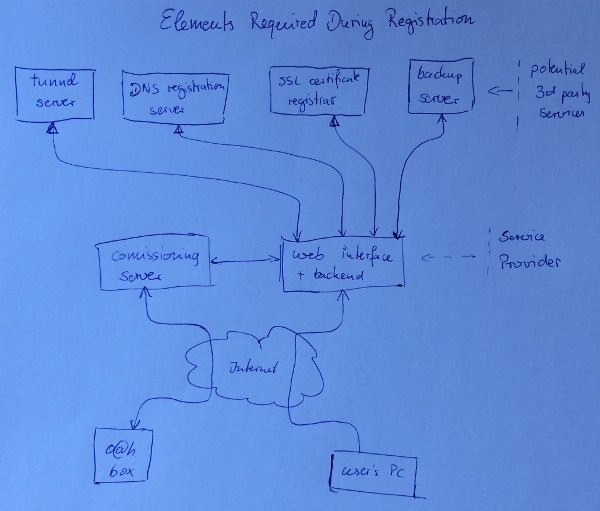
 When an uninitialized o@h box is connected to the network it establishes an encrypted connection to the provisioning server on the Internet of the o@h service company and sends an identification number (ID). This ID is the same as the ID printed on the box. This gives the service company a channel to the user's o@h box to download all required configuration information once the user has selected a domain name and has provided payment details as described above.
When the user accesses the installation web page of the service provider and has typed in the ID, the service will check if it currently has a connection to a box with the same ID. This way the service can validate that the user has typed in the correct ID. A sufficiently long and random ID further ensures that only the physical owner of the box can bring it into service. Figure one one the left shows this setup.
Selection and Allocation of a Domain Name
Being able to access the o@h box from the Internet is key as mobile devices must be able to synchronize their calendars, address books and files from anywhere at anytime. To meet this goal, the box at home must be reachable from the Internet via a domain name that the user selects during the installation process via the web page of the o@h service provider company. The service provider company must either be a domain registrar himself or have an automated interface to a third party domain registar service. Whether the domain is bound to a fixed IP address or whether this binding can be updated by the o@h box later-on in case a dynamic IP address is used depends on the connectivity implementation that is further described below.
Creation of an SSL certificate
For confidentially and privacy reasons, all data exchange between the user's devices and the o@h box at home must use a secure http connection (https). This requires that the o@h box can provide a valid SSL certificate to a web browser and other applications such address book and calender synchronization software on mobile devices that has been signed by a trusted certificate authority. Creating an SSL certification during the installation process without involving the user works as follows:
Once the user has selected a domain name and has entered payment information, the domain name is registered. The domain name is then sent to the o@h box over the connection that exists to the commissioning server as described above. The box then automatically generates an SSL certificate for that domain and returns the public key to the commissioning server. If the service provider is an authorized certificate authority, the SSL certificate can be created locally.
If a 3rd party SSL certificate authority is used, the certificate signing request containing the public key is forwarded over an automated interface. To get a basic SSL certificate for a domain name, the certificate authority usually validates the request by sending an email to the email address that is part of the domain name record in the DNS server. The email contains a URL that has to be accessed for validation. For automated processing that does not involve the user, the email address in the domain name record in the DNS server for the domain of the o@h box must point to an email account the service provider has access to.
Once the certificate is generated, it is sent to the o@h box over the connection that exists to the commissioning server. The box then installs the keys and the certificate and restarts its internal web server.
It's important to note at this point that the private key never leaves the o@h box. As a consequence, no information is handled by the service company that could be used later on to decrypt user traffic over an https connection that is secured with the generated SSL certificate lateron. For details see here and here.
Creation of Port Forwarding to make the o@h box accessible from the Internet
A major hurdle for the average user is to enable access to a server at home from the Internet. Typically, DSL and cable routers provide private IP addresses for the home network which are mapped to a single IP address that is visible to the outside. This is called Network Address Translation (NAT). One of the benefits, which is at the same time a major shortcoming for the o@h box at home, is that NAT only allows traffic flows that are established from the home network. Traffic arriving at the DSL or cable router that has not originated from the home network such as a connection establishment request from a mobile device that wants to synchronize the address book is blocked. This because the NAT service does not know to which internal device to forward the incoming connection request. Most DSL and cable routers today allow the creation of rules to enable such a service via their web interface. The way this is done is not standardized, however, and typically beyond the capabilities of non-technical users. There are a number of possibilities to solve this issue without requiring interaction with the user:
Alternative 1: Many Internet Service Providers (ISPs) deliver DSL and cable modems with Universal Plug and Play (UPnP) capability. UPnP enables services running on devices in the home network, among other things, to create port forwarding rules in the gateway without interaction with the user. Skype, for example, uses this port forwarding feature for direct client to client communication. Security experts recommend to disable UPnP in home routers but if activated the o@h box could make use of it.
Alternative 2: If the o@h service provider is also the user's ISP, the DSL and cable router could be configured to forward a selected incoming TCP port to the o@h box. This could be preconfigured or the router configuration could be dynamically updated during the o@h installation process in case the o@h service provider has maintenance access to the deployed DSL or cable router.
Alternative 3: In many cases, the previously discussed alternatives are not an option. This is especially the case when the Internet service provider does not assign a public IPv4 address to the user and uses a second NAT gateway at the border of his network to the Internet. This in effect prevents any externally initiated communication to the user's home network without exception.
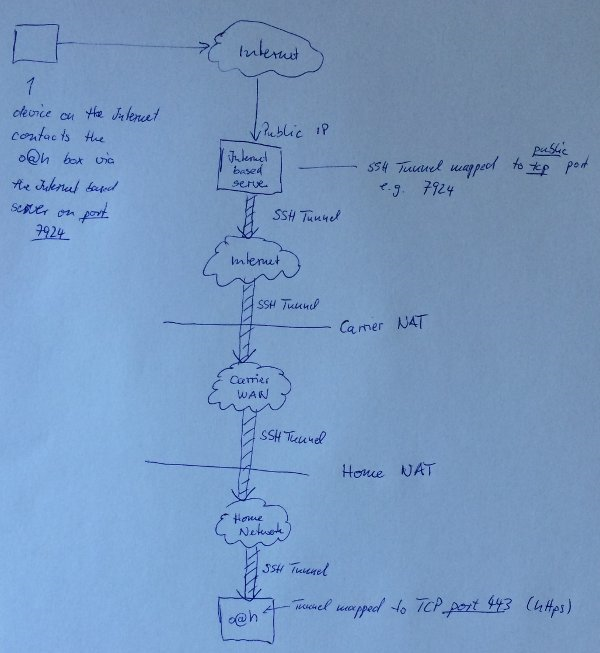
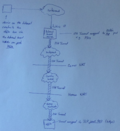 An easy solution in this scenario is to establish an SSH tunnel to an external server over which the web server tcp port of the o@h box is tunneled. The domain name of the o@h box that was registered as described above is the linked to the public IP address of the server on the Internet. All connection requests to a specific tcp port on that server are then transparently forwarded over the SSH tunnel to the o@h box at home. An end to end secure https (HTTPS) connection is used between a client device and the o@h box at home so the server on the Internet that tunnels the connection back to the home network of the user only sees encrypted data packets it can't decode. This way confidentiality and privacy is assured. This scenario is shown in the second figure.
An o@h service provider without network infrastructure could use virtual servers offered by cloud based companies. An example is the Amazon EC2 service. By mapping o@h boxes of different users to different tcp ports, a single virtual server can become the end point for hundreds and perhaps even thousands of o@h boxes. In such a scenario the number of endpoints that can be provided by a single server is limited by the number of tcp ports (65535), network capacity the virtual server has available and processing power. While the user's data would in fact traverse a could based network center in this solution, all data is encrypted and can thus not be decrypted there or anywhere else in transit.
Creating an SSH tunnel to a virtual server on the Internet and then forwarding HTTPS traffic through it to a box in the home network might sound complicated at first. In practice, however, I was surprised how easy it was to set up. I haven't blogged about this before but there'll be a follow up post that describes of how to do this.
The main disadvantage of this approach is that when a user is at home and exchanges data with his o@h box at home, it is sent via his DSL or cable link to the external server and from there back to his o@h box at home over the SSH tunnel. For synchronization of calender and address books this is of little consequence as the amount of data transferred is very small. If the user wants to store large files on the o@h box, however, performance is only acceptable if the uplink speed of the DSL or cable connection is high enough. This is usually the case if the user's home network is connected to the Internet via VDSL, cable or fiber.
Automatic Software Updates
Another important requirement when running a cloud service at home is that the software is kept up to date to prevent the user from becoming a victim of security issues that are often exploited quickly. The o@h box should thus be able to check if an update is available and update itself without user interaction. The Owncloud service has an automated process for this that must at this point, however, still be triggered by the user. Other cloud services such as WordPress have fully automated this process and thus show that a similar fully automatic service can also be created for Owncloud, either by the Owncloud communality itself or as part of the overall software solution of the o@h service provider.
Backup and Restore Service
One thing non-technical users usually do not think about is how to back-up their data until it is too late. The o@h box should therefore come with a built in service to regularly backup an encrypted copy of all data stored on the box to data storage on the web. If a strong encryption algorithm and key is used, which remains only in the hands of the user, this can be done in an automated and secure way. If the o@h service provider does not have a backup solution of his own, cloud based services such as Amazon's Glacier service could be used. Should the o@h box fail, the user could then restore his data from the web by providing the ID of the new box and the ID of the old box to the service provider via a web interface. The domain name would then be linked to the new box and a new SSL certificate can be generated as described above. The user can then access his new box and restore his data from the backup in the network by supplying the backup key to his new o@h box and not to the service provider. This ensures that only the user has access to his data.
Summary
This must have been the longest post I ever had on my blog. But this is a topic I strongly care about and I wanted to show that all the building blocks exist to home-cloud enable everyone and not only technically savvy users. I'm looking forward to see how this develops. As always, let me know what you think.